



Apr 8, 2026
Why Revit Files Need Preparation for 3D Printing
Revit is designed for building documentation, not for 3D printing. A Revit model that looks perfect on screen will almost certainly fail to print without preparation. The geometry that BIM software uses — parametric families, analytical surfaces, and construction-grade detail — doesn't translate directly to the mesh geometry that 3D printers need.
The good news is that the preparation process is straightforward once you know the steps. This guide walks you through the complete workflow, from Revit model to printed architectural scale model.
Step 1: Prepare Your Revit Model
Create a Dedicated 3D View
Start by creating a new 3D view specifically for export. Name it something clear like "3D Print Export" so it doesn't get confused with your working views. This dedicated view lets you control exactly what gets exported without affecting your documentation views.
Set Visibility and Detail Level
In your export view, set the detail level to "Fine" to capture facade articulation. Then systematically turn off elements that shouldn't be printed: furniture, MEP systems, annotation, room tags, grids, and levels. Keep structural elements, walls, floors, roofs, doors, windows, and any facade elements that define the building's form.
A good rule of thumb: if you wouldn't see it from the outside at your chosen scale, turn it off.
Think About Scale
Detail that's visible at 1:50 disappears at 1:200. Window mullions that are 50mm wide in real life become 0.25mm at 1:200 scale — too thin to print reliably. Before exporting, consider your target scale and simplify details that won't survive the reduction.
General minimum wall thickness guidelines for reliable printing:
| Scale | Min. Printable Detail | What's Visible |
|---|---|---|
| 1:50 | 0.5mm (25mm real) | Window mullions, railings, door handles |
| 1:100 | 0.5mm (50mm real) | Window frames, balcony edges, column profiles |
| 1:200 | 0.5mm (100mm real) | Wall thickness, major openings, floor plates |
| 1:500 | 0.8mm (400mm real) | Building massing, major setbacks, roof form |
Step 2: Choose Your Export Method
There are three reliable ways to get geometry out of Revit for 3D printing. Each has trade-offs.
Method A: Export as DWG (Recommended)
This is our recommended method for most architectural models. Export your 3D view as a DWG file using File → Export → CAD Formats → DWG. In export settings, select "Polymesh" as the solid geometry type — this produces cleaner mesh geometry than the default ACIS solids. Set units to millimetres.
The DWG can then be opened in Rhino, SketchUp, or sent directly to us for conversion to a printable STL.
Method B: STL Export Add-in
Autodesk provides a free STL export add-in for Revit. Once installed, it adds an "STL Export" option under the Add-Ins tab. Select your 3D view, choose binary STL format, and export. This method produces a direct mesh, but the quality can be inconsistent — particularly for curved elements and complex families.
If you use this method, always check the exported STL in a mesh viewer (MeshLab or 3D Builder) before sending it for printing.
Method C: IFC Export
Export as IFC (Industry Foundation Classes) using File → Export → IFC. IFC files preserve building element information and can be converted to printable meshes by most 3D printing service bureaus, including us. This method works well when you want to preserve element-level information for selective printing (for example, printing the structure separately from the envelope).
Step 3: Check and Repair Your File
Exported files from Revit almost always need some repair before printing. Common issues include non-manifold edges (where surfaces don't fully enclose a volume), inverted normals (surfaces facing the wrong direction), intersecting geometry (overlapping walls and floors), and zero-thickness elements (curtain wall panels exported as surfaces instead of solids).
Free Repair Tools
Microsoft 3D Builder (Windows) — Open your STL, and 3D Builder will automatically detect and offer to repair most common mesh errors. Simple and effective for straightforward fixes.
MeshLab (free, cross-platform) — More powerful mesh analysis and repair. Use Filters → Cleaning and Repairing to fix non-manifold edges, remove duplicate faces, and close holes.
Meshmixer (free, Autodesk) — Excellent for thickening thin walls, filling gaps, and general mesh cleanup. The "Make Solid" function can rescue even badly broken meshes.
Common Problems and Solutions
Curtain Walls Export as Surfaces
Revit curtain walls are often modelled as zero-thickness surfaces. These can't be 3D printed because a printer needs solid geometry with actual wall thickness. Solution: before exporting, replace curtain wall panels with a basic wall type that has real thickness (even 2–3mm at scale is enough), or add thickness in post-processing using Meshmixer's "Extrude" function.
Stairs and Railings Create Messy Geometry
Revit stairs and railings are parametrically complex and often produce broken meshes on export. For presentation models, consider simplifying stairs to basic ramp or stepped geometry in your export view. For massing models, stairs can usually be omitted entirely.
The Model Is Too Large for the Printer
If your building model exceeds the printer's build volume at your desired scale, we split the model into sections and assemble them after printing. This is standard practice for larger models and is included in our preparation service at no extra charge.
File Size Is Enormous
Revit exports can produce unnecessarily large files, especially if detail level is set too high. Reduce file size by lowering the tessellation quality in export settings (a 50% reduction in mesh density usually has no visible effect on the printed model) and removing internal geometry that won't be visible.
The Easier Option: Send Us Your Revit File
If all of this sounds like more work than you want to do, there's a simpler path: send us your Revit file directly. We handle file preparation, repair, and optimisation for 3D printing as part of our standard service. There's no extra charge for file preparation on models we're printing.
Just export your Revit model as a DWG or IFC (takes 60 seconds), email it to us with your desired scale, and we'll handle the rest. We'll send you a preview render of the prepared model for approval before we print.
For pricing on your specific project, check our Architectural Model Cost Guide or request a quote directly.



Apr 8, 2026
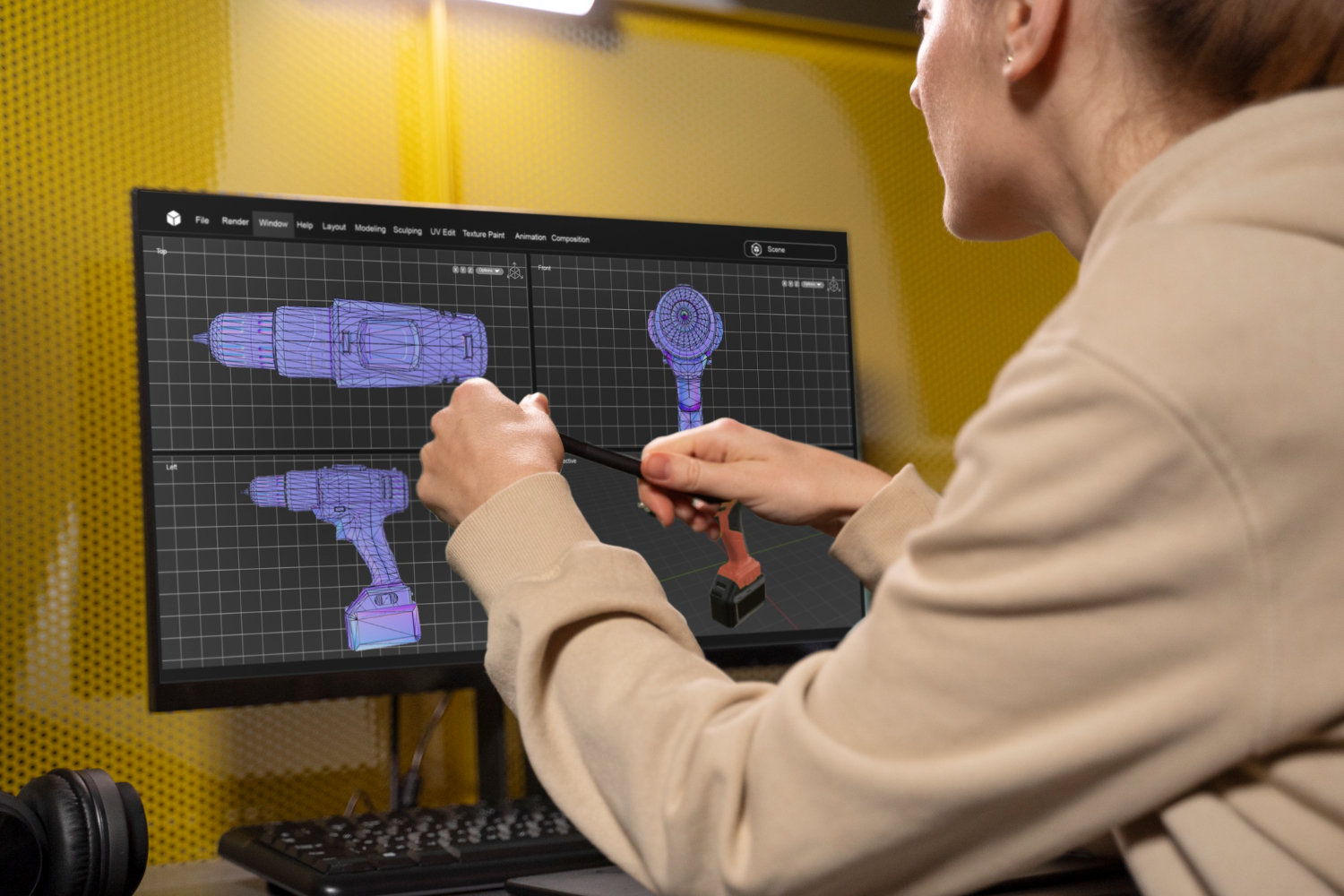
Design during the day, print overnight, test the next morning. A practical workflow for running rapid prototyping iterations at one per day.


Apr 8, 2026
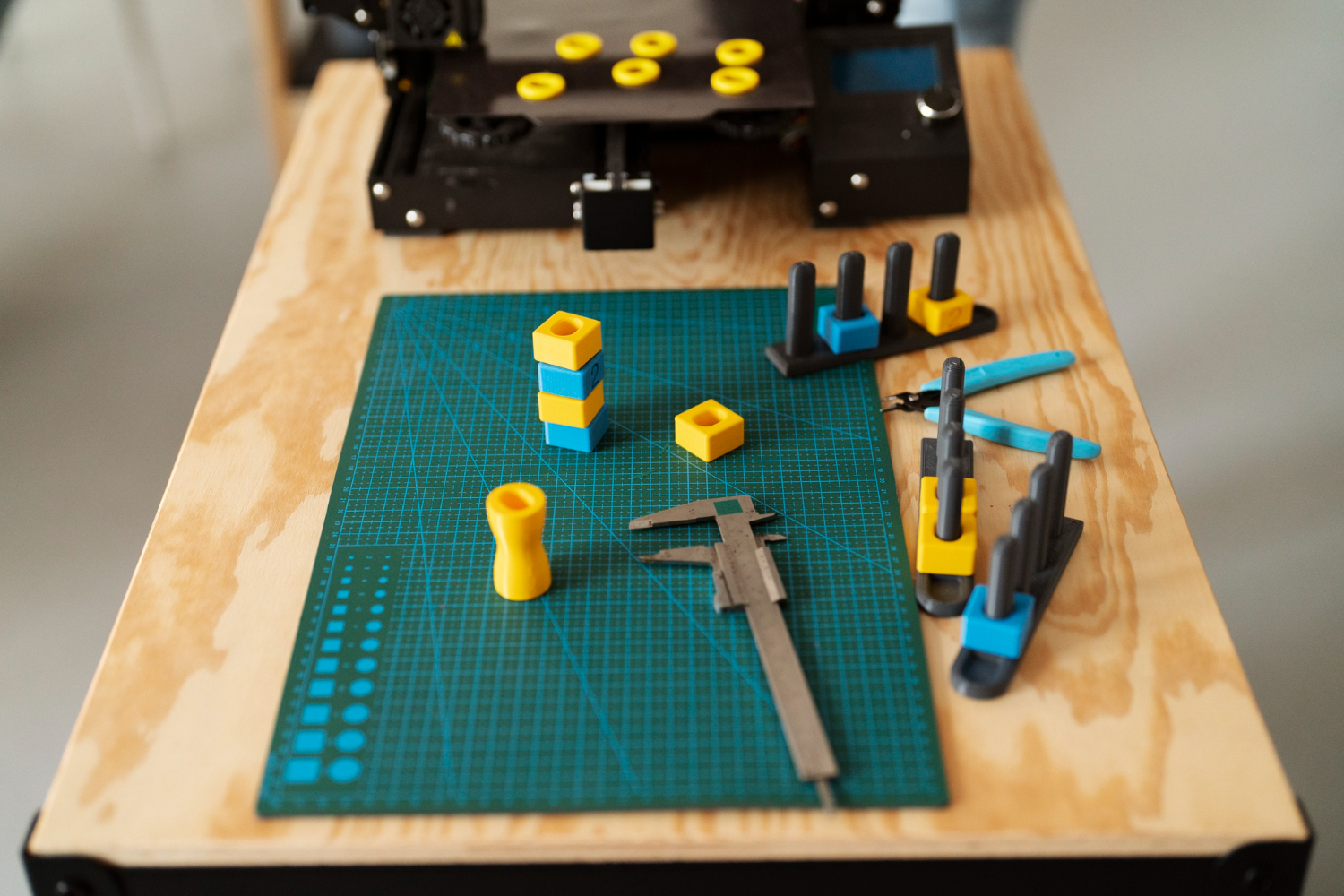
A structured checklist for testing 3D printed prototypes: visual inspection, fit testing, functional validation, and user testing. Get the most out of every iteration.
.webp)





Copyright © 3D On Demand