


Apr 8, 2026
File Formats for 3D Printing: STEP vs STL vs 3MF Explained
Digital files are the bridge between design intent and physical reality in 3D printing. The file format you choose significantly impacts print quality, compatibility, and success. Different formats serve different purposes, and understanding their strengths and limitations ensures optimal printing outcomes. This comprehensive guide explains major 3D printing file formats, their appropriate use cases, and best practices for file preparation.
Understanding 3D File Formats
3D file formats fall into two fundamental categories: parametric (model) formats and mesh formats. Parametric formats store design intent through mathematical relationships. Mesh formats store only geometric surface information. This distinction profoundly impacts how files are used in 3D printing.
STEP Format: The Professional Standard
What Is STEP?
STEP (Standard for the Exchange of Product model data) is the industry-standard parametric format for CAD (Computer-Aided Design) files. STEP stores complete design information including dimensions, tolerances, relationships, and manufacturing intent. The format captures how parts are constructed, not just what they look like.
STEP Advantages
STEP preserves precise geometric information with full mathematical accuracy. Dimensions and tolerances remain intact. Design features like holes, pockets, and ribs are defined parametrically rather than as triangulated surfaces. STEP files are compact, often 5-10 times smaller than equivalent STL files. STEP's precision makes it ideal for detailed models and tolerance-critical parts.
STEP enables seamless communication between design software and manufacturing. Engineers design in CAD, export STEP files, and manufacturing providers interpret precise intent. This is essential for engineering and industrial applications demanding dimensional accuracy.
STEP Limitations
STEP requires sophisticated software to read and interpret. Not all 3D printing slicing software accepts STEP directly; many require STL conversion. Converting STEP to STL introduces lossy approximation; geometric detail may be lost depending on tessellation parameters. For simple parts, STEP's advantages over STL may be marginal.
STEP in 3D Printing
Professional 3D printing services increasingly accept STEP files directly. For detailed architectural models, engineering components, and parts requiring dimensional precision, STEP is optimal. Our service accepts STEP files and leverages the format's precision for superior manufacturing results. For architectural scale models and product design prototyping, STEP format preserves design intent better than alternatives.
STEP File Preparation
Export STEP files from your CAD software directly. Verify export settings: ensure proper unit selection (millimeters vs inches) and model orientation. Clean up CAD models before export: remove construction geometry, internal features unnecessary for printing, and unneeded components. Simplified models export more reliably and slice faster.
STL Format: The 3D Printing Standard
What Is STL?
STL (Stereolithography) is the most widely-used 3D printing file format. STL represents 3D geometry as triangular mesh: a collection of connected triangles approximating the original surface. Despite limitations, STL dominates because nearly all 3D printing equipment accepts it.
STL Strengths
Universal compatibility: virtually every 3D printer accepts STL files. Simplicity: STL is straightforward to generate and understand. File size is manageable for most models. STL works well for organic shapes and parts without precision requirements. For visual prototypes and aesthetic models, STL is adequate.
STL Weaknesses
STL is inherently lossy. Geometric precision is approximated by triangle count. Low triangle counts produce faceted, low-quality surfaces. High triangle counts create enormous files (often 100+ MB) that burden slicing software and 3D printers. STL loses design intent entirely; dimensions and tolerances vanish, leaving only surface approximation.
STL cannot represent sharp edges, fine features, or precise geometry without excessive triangulation. Manufacturing holes, threads, and precise dimensions from STL is risky; the approximated geometry may not meet requirements.
STL Resolution: Triangle Count and Quality
STL quality depends critically on triangle count and tessellation. Low-resolution tessellation (0.5mm error tolerance) produces coarse, faceted models but manageable file sizes. Medium resolution (0.1mm error) balances quality and file size. High resolution (0.01mm error) produces excellent surface quality but creates unwieldy files.
For visual prototypes and non-critical parts, medium resolution STL is adequate. For detailed architectural models and precise components, higher resolution is necessary. Our service provider can advise on appropriate resolution for your specific requirements.
STL File Preparation
Generate STL files from CAD software. Verify export settings: model orientation, unit system, and tessellation tolerance. Use medium-to-high resolution tessellation: 0.1mm error tolerance is standard for professional quality. Verify generated STL for errors: manifold geometry (closed, non-intersecting surfaces) is essential. Many CAD packages include STL repair utilities; use them to correct issues before printing.
STL Best Practices
Use STL for aesthetic models, functional prototypes, and non-critical parts. Don't use STL for precision-critical components where dimensional accuracy matters. Consider STEP format if precision is essential. Check file size: files exceeding 50-100 MB may cause slicing software problems; reduce resolution or simplify geometry if needed.
OBJ Format: Flexible Mesh Alternative
What Is OBJ?
OBJ (Wavefront Object) is an alternative mesh format similar to STL but with additional capabilities. OBJ stores vertex coordinates and face definitions like STL but can include texture and color information. OBJ is widely supported in 3D design, animation, and visualization software.
OBJ Advantages
OBJ supports color and texture data, enabling color 3D printing directly from OBJ files. Better support in visualization and design software than STL. OBJ is human-readable text format, making it inspectable and debuggable. File size is typically similar to STL for equivalent geometry.
OBJ Limitations
Like STL, OBJ is mesh-based and loses design intent. Precision cannot be guaranteed from OBJ files. Not all 3D printers accept OBJ directly; conversion to STL is often necessary. Color information is supported by advanced printing equipment but not all services.
OBJ in 3D Printing
OBJ is less common in 3D printing than STL or STEP but grows increasingly relevant for color 3D printing. If your design includes color information and you're using color-capable 3D printing, OBJ is an excellent choice. Otherwise, STL or STEP are more standard.
3MF Format: The Modern Standard
What Is 3MF?
3MF (3D Manufacturing Format) is a relatively new format designed specifically for 3D printing and advanced manufacturing. Developed by the 3MF Consortium (Microsoft, Autodesk, HP, and others), 3MF combines advantages of parametric formats and mesh formats.
3MF Advantages
3MF is XML-based, human-readable, and includes metadata for 3D printing: material properties, color, build instructions. The format can contain both mesh and parametric information. File compression results in smaller files than STL for equivalent geometry. 3MF explicitly supports multiple materials and colors, enabling advanced 3D printing workflows. The format evolves with industry needs while maintaining backward compatibility.
3MF Strengths for 3D Printing
3MF is specifically designed for 3D printing, addressing limitations of older formats. Metadata like material properties and color are encoded in the file. Multiple objects and materials in single file enable complex assemblies. The format supports precise manufacturing information alongside geometry. Industry adoption is growing; major CAD software increasingly exports 3MF natively.
3MF Limitations
3MF adoption is still emerging; not all 3D printing services accept it yet. Older 3D printers may not support 3MF. For simple parts where STL suffices, 3MF offers no practical advantage. The format is more complex than STL, requiring sophisticated parsing.
3MF in 3D Printing
3MF represents the future of 3D printing file formats. For new projects and color 3D printing, 3MF is increasingly recommended. As adoption grows, 3MF will likely displace STL as the standard. Many modern 3D printing services already accept 3MF; adoption will accelerate as software support improves.
IGES Format: Legacy but Functional
What Is IGES?
IGES (Initial Graphics Exchange Specification) is an older parametric format predating STEP. IGES was designed for CAD interoperability before STEP became standard. While functional, IGES is superseded by STEP in modern workflows.
IGES Characteristics
IGES preserves design intent like STEP but is more complex and less reliable in conversion. Many modern CAD packages still export IGES, but STEP is preferred. IGES remains in legacy systems and older manufacturing workflows.
When to Use IGES
IGES is rarely optimal for new projects. Use IGES only when legacy systems require it or when STEP export is unavailable. For new 3D printing projects, STEP is superior.
File Format Selection Guide
Visual Prototypes and Aesthetic Models: STL is adequate. Export at medium resolution (0.1mm tessellation). Simplicity and universal compatibility are advantages.
Detailed Architectural Models: STEP is preferred. Preserves geometric precision for fine details like windows and textures. Architectural scale models benefit from STEP's precision.
Engineering Components and Functional Parts: STEP is optimal. Preserves dimensions and tolerances. Enables precise manufacturing. Essential for components requiring specific dimensions.
Color 3D Printing: 3MF or OBJ if color support is available. Otherwise, multiple STL files with material annotations.
Legacy Systems: IGES when STEP is unavailable, but prefer STEP if possible.
Format Conversion Best Practices
Minimize Conversions: Export directly to target format from CAD software when possible. Conversions introduce errors and data loss.
Verify Conversions: After conversion, open the file in visualization software and verify geometry. Check for missing features, intersecting surfaces, or artifacts introduced during conversion.
Archive Original Files: Keep original CAD files alongside exported mesh files. If problems arise, re-export at different settings.
Quality Control: Before submitting files for printing, examine converted geometry carefully. Zoom in on details; verify fine features are intact. Check file size; unusually large files suggest quality issues.
Common File Preparation Errors
Wrong Units: Exporting in inches when millimeters were intended (or vice versa) produces dramatically wrong-sized parts. Always verify unit settings before export.
Inverted Normals: Surface normals pointing inward instead of outward confuse slicing software. Most CAD packages can automatically fix normal orientation.
Non-Manifold Geometry: Surfaces with holes, intersections, or gaps prevent proper slicing. Use mesh repair utilities to fix non-manifold issues.
Excessive Detail: Models with excessive geometry (millions of triangles) slow slicing software and 3D printers without improving quality. Simplify geometry or reduce tessellation resolution.
Thin Walls and Features: Features smaller than material minimum thickness (typically 1-2mm) may not print. Verify minimum wall thickness before submission.
Best Practices for File Submission
Document Your Files: Include notes on unit system, intended material, desired scale, and any special requirements. This helps service providers ensure successful printing.
Provide Assembly Instructions: For multi-part models, include information on how parts should fit together and any assembly requirements.
Specify Technology Preference: Indicate which technology you prefer (FDM, SLA, SLS) and why. Our team can suggest alternatives if needed.
Review Before Submission: Open files in free STL viewers to verify geometry appears correct before sending to service provider.
The Evolution of 3D Printing Formats
STL dominates currently due to universal compatibility, but 3MF represents the future. As 3D printing technology matures and industry standardization progresses, 3MF adoption will accelerate. For forward-looking projects, 3MF is increasingly recommended.
STEP remains essential for precision engineering applications where design intent must be preserved. Parametric formats like STEP are irreplaceable for components requiring exact dimensions and tolerances.
Format Trends: STL remains universal but increasingly seen as legacy. 3MF gains adoption for advanced features. STEP remains dominant in professional engineering. OBJ relevant for color 3D printing. IGES increasingly rare except in legacy workflows.
Choosing Formats for Your Project
Consider these factors:
Precision Requirements: Dimensions critical? Use STEP. Aesthetic model? STL suffices.
Color Requirements: Multi-color printing? Use 3MF or OBJ. Monochrome? Any format works.
Service Provider Compatibility: Check what formats your service accepts. Most accept STL and STEP. Advanced services accept 3MF.
File Complexity: Simple parts? STL is fine. Complex assemblies? 3MF or STEP better manage complexity.
Future-Proofing: New projects? 3MF is increasingly standard. Legacy compatibility needed? STL or STEP.
Getting Help With File Formats
Uncertain which format to use? Our team at our contact page can advise on optimal format selection for your specific project. We accept STEP, STL, OBJ, and 3MF formats and can guide you on preparation, conversion, and best practices for your particular application.
For detailed technology guidance, review our resources on comparing 3D printing technologies and design guidelines including file preparation. Understanding file formats is crucial to successful 3D printing; choosing correctly ensures your designs print successfully with optimal results.



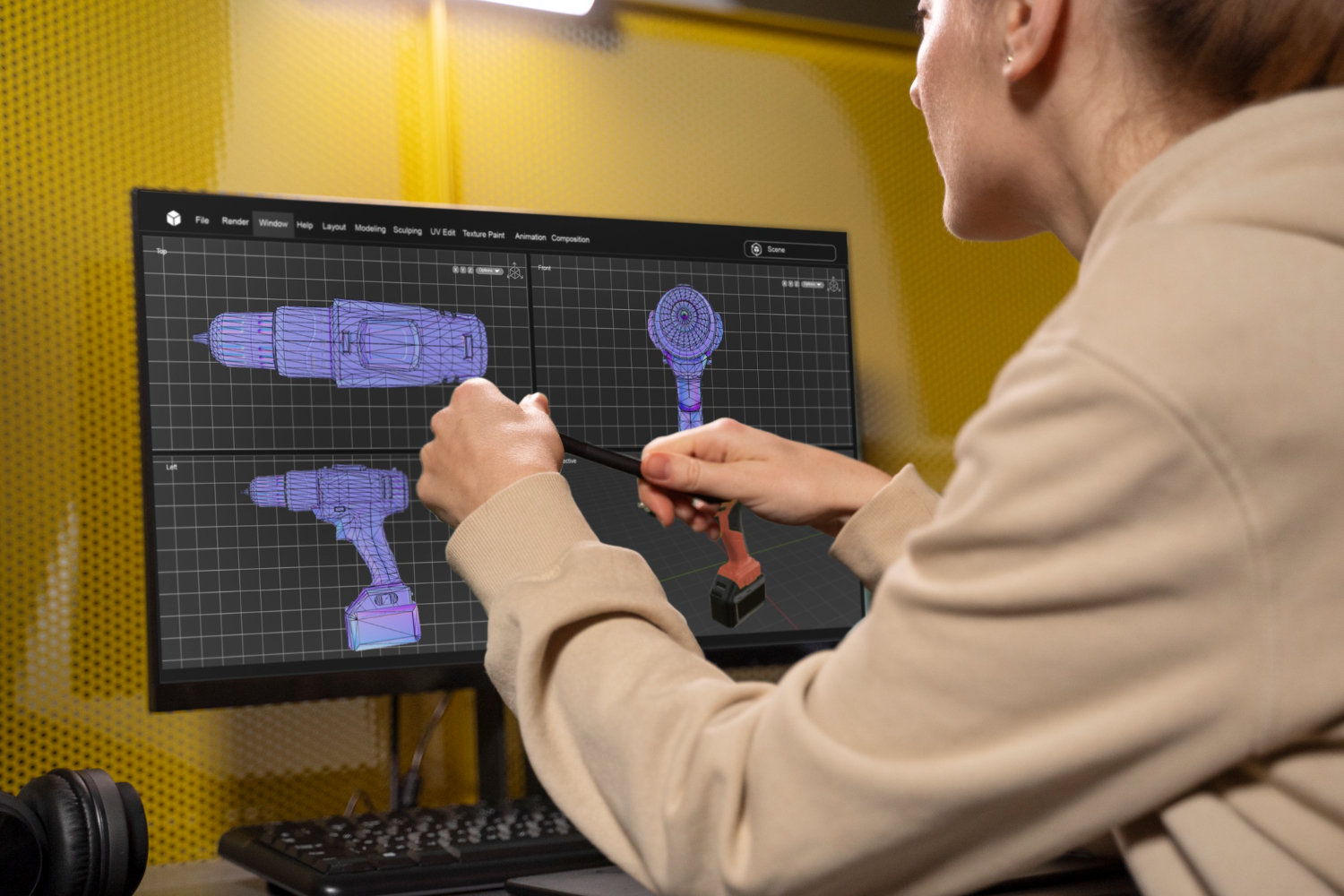
Apr 8, 2026
Design during the day, print overnight, test the next morning. A practical workflow for running rapid prototyping iterations at one per day.


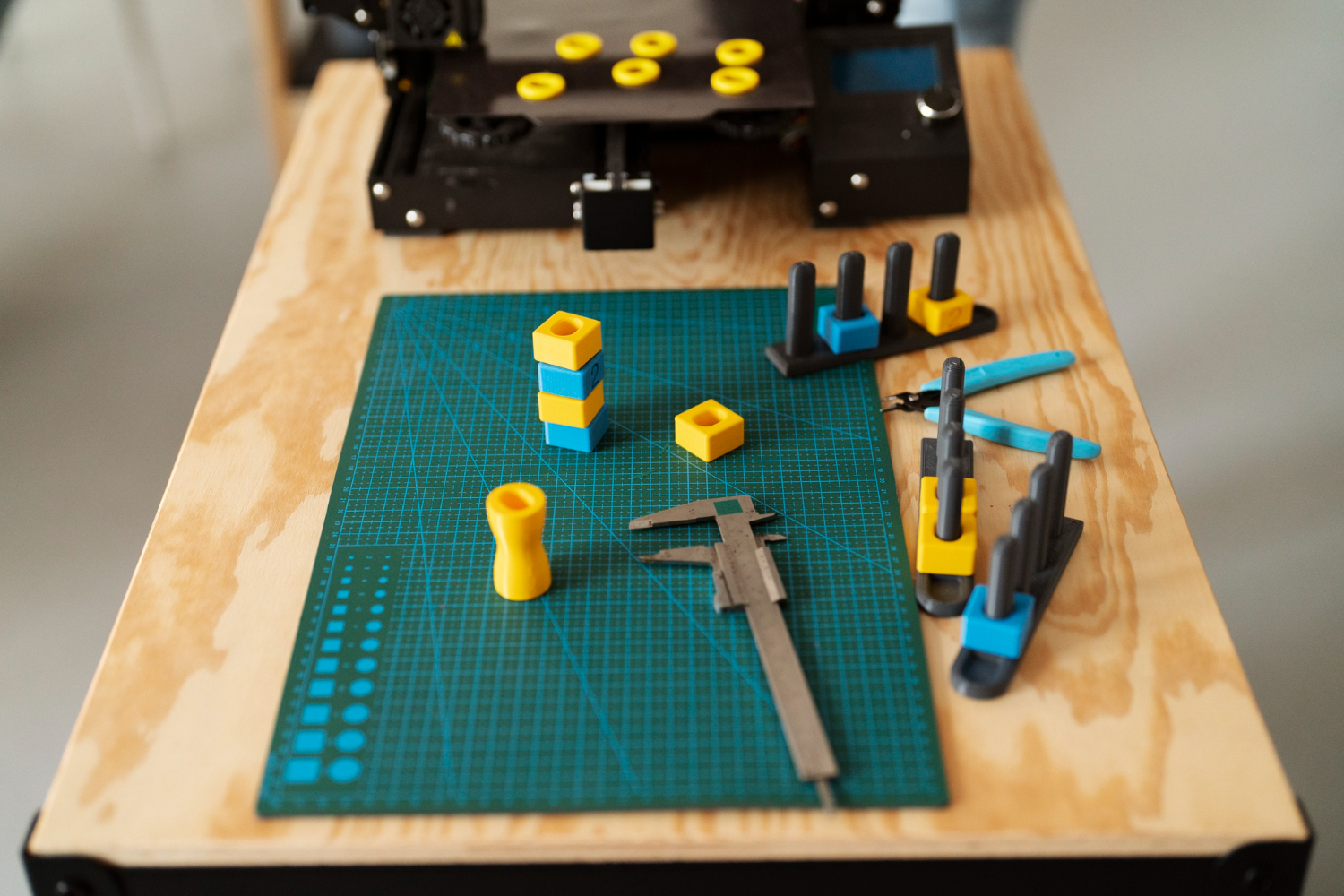
Apr 8, 2026
A structured checklist for testing 3D printed prototypes: visual inspection, fit testing, functional validation, and user testing. Get the most out of every iteration.
.webp)




Copyright © 3D On Demand